
Introduction
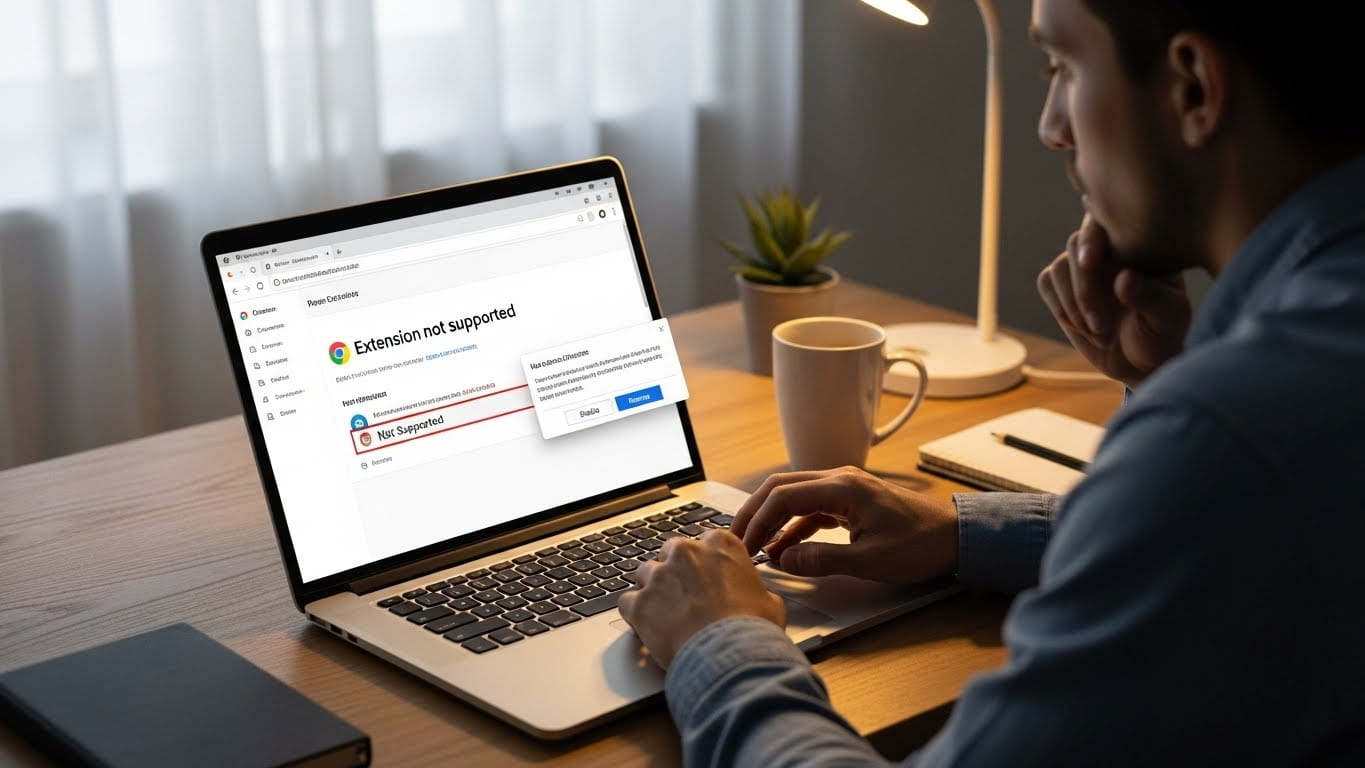
If you are using Google Chrome and see a message that a chrome extension not supported, it can be frustrating.
This issue may prevent you from accessing important features, tools, or apps. Fortunately, there are ways to fix it and turn the extension back on.
In this guide, we will explain why the problem occurs, how to troubleshoot it, and step-by-step methods to resolve it safely.
Why Chrome Extension Not Supported Happens
There are several reasons why a chrome extension not supported message appears. Understanding these can help you fix it quickly.
Outdated Chrome Version
Extensions often require the latest version of Chrome. Using an older version may cause compatibility issues.
Extension Removed from Chrome Web Store
If the developer removes or disables the extension, Chrome will mark it as not supported.
Corrupt Extension Files
Sometimes the extension’s files become corrupted due to errors, preventing it from running properly.
Security Settings
Chrome may block certain extensions if they are considered unsafe or incompatible with the browser.
How to Check Which Extension Is Not Supported
Step 1: Open Chrome Settings
Click the three dots in the top-right corner and select “Settings.”
Step 2: Go to Extensions
Navigate to “More tools” and then “Extensions.”
Step 3: Identify Problematic Extensions
Look for any extensions labeled not supported or disabled.
Chrome Extension Not Supported How to Turn Back On
Method 1: Update Google Chrome
- Click the three dots in the top-right corner.
- Go to “Help” and select “About Google Chrome.”
- Chrome will check for updates automatically.
- Install updates and restart the browser.
- Check if the extension is working.
Method 2: Enable the Extension Manually
- Go to Chrome Extensions.
- Find the disabled or unsupported extension.
- Toggle the switch to turn it on.
- Refresh your browser to apply changes.
Method 3: Reinstall the Extension
- Remove the extension by clicking “Remove.”
- Go to the Chrome Web Store and find the extension.
- Click “Add to Chrome” to reinstall.
- Check if it works properly now.
Method 4: Clear Cache and Cookies
- Click the three dots and go to “Settings.”
- Scroll to “Privacy and Security.”
- Select “Clear browsing data.”
- Choose “Cookies and other site data” and “Cached images and files.”
- Clear data and restart Chrome.
Method 5: Disable Conflicting Extensions
- Go to Chrome Extensions.
- Turn off other extensions temporarily.
- Try turning on the unsupported extension.
- If it works, one of the other extensions may be conflicting.
How to Prevent Chrome Extension Not Supported in the Future
Keep Chrome Updated
Always use the latest version to avoid compatibility issues.
Check Extension Compatibility
Before installing, make sure the extension is compatible with your Chrome version.
Avoid Unsafe Extensions
Only install trusted extensions from the Chrome Web Store.
Regularly Backup Settings
Backing up Chrome settings ensures you can restore extensions easily if problems occur.
Benefits of Turning Back On Chrome Extensions
Restoring your extensions has many advantages:
- Access to important features
- Faster workflow
- Better browser customization
- Improved productivity
Common Mistakes Users Make
- Ignoring updates for Chrome or extensions
- Installing too many extensions at once
- Using extensions from untrusted sources
- Forgetting to restart Chrome after enabling an extension
Chrome Extension Not Supported on Mac or Windows
The solution is similar for both platforms, but minor differences exist:
On Windows
- Ensure you have administrative permissions.
- Check antivirus software; sometimes it blocks extensions.
On Mac
- Make sure Chrome has permissions under System Preferences.
- Remove any Mac-specific security restrictions blocking extensions.
Advanced Troubleshooting
Use Chrome Flags
- Type chrome://flags in the address bar.
- Search for “Extension” related flags.
- Enable or disable flags as suggested by Chrome support.
- Restart Chrome and test the extension.
Reset Chrome Settings
- Go to Chrome Settings.
- Scroll down and click “Advanced.”
- Choose “Restore settings to their original defaults.”
- Confirm reset and check extensions.
Check for Malware
Some malware can disable extensions. Run a scan using Chrome’s built-in Cleanup Tool or antivirus software.
Frequently Asked Questions
Can I use unsupported extensions safely?
It depends. Only enable trusted extensions to avoid security risks.
Why does Chrome keep disabling my extensions?
Chrome disables extensions if they are outdated, corrupt, or unsafe.
Is reinstalling the extension safe?
Yes, reinstalling from the Chrome Web Store ensures you have a secure and compatible version.
Conclusion:
The chrome extension not supported how to turn back on problem can be frustrating, but it is usually easy to fix. Updating Chrome, enabling extensions, reinstalling, or clearing cache are effective solutions.
Following the preventive tips will help you avoid this issue in the future and ensure your browser runs smoothly with all essential extensions active.
By keeping your browser and extensions updated, and using trusted sources, you can enjoy a secure, productive, and seamless browsing experience.